
How to acknowledge an instruction and see who has read it
If an instruction requires the “I've read it” acknowledgement, every employee in its audience has to read it and click the button at the end. An administrator sees who opened the instruction and who acknowledged it, and can remind those who haven't.
How to turn on acknowledgement
In the instruction editor, open Settings, turn on Require “I've read it” acknowledgement, then click Save settings. An acknowledgement applies to a specific version: after publishing with the Major change type, it has to be collected again — see Publishing and versions.
For employees: how to read and acknowledge
-
Find the instruction. In the web dashboard, go to Work → Instructions, To acknowledge tab. If you got a notification about a new or updated instruction, open it.
-
Read to the end. At the top there's a banner, Please confirm you've read this — the button is at the end of the instruction; the Go link scrolls to the button. On the right are the table of contents and attachments.
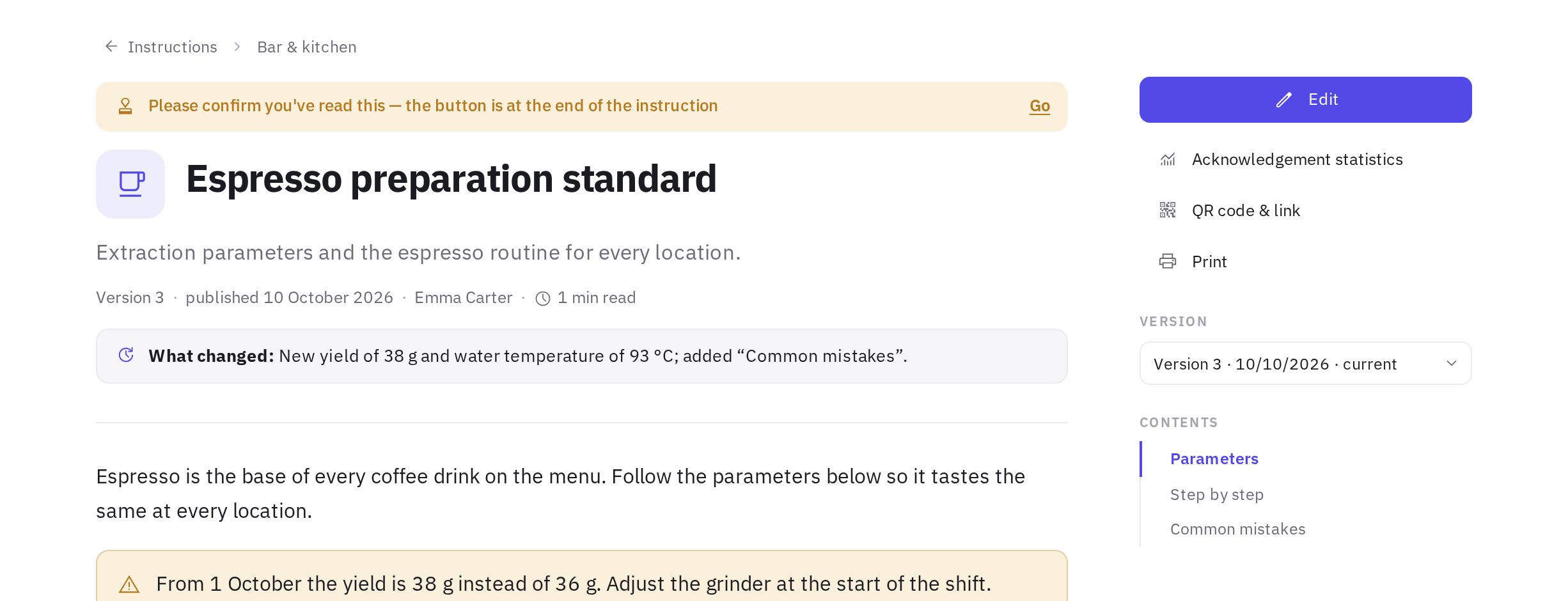
The acknowledgement banner at the top of the instruction -
Click “I have read this instruction”. A You've confirmed reading this mark appears, and the instruction disappears from the To acknowledge tab.
You can acknowledge only the current version. If you opened an older version from the Version list, go back with the Open current link.
In the mobile app
The mobile app is for reading instructions and the “I've read it” acknowledgement; you can't create or edit instructions there. A publication push opens the instruction directly. If your version of the app doesn't have the Instructions section yet, an employee with web dashboard access can open the instruction in the phone's browser — for example, via a QR code next to the equipment. More about the app: Mobile app.
For managers: who has read it
-
Open the statistics. In the instruction's reading mode, click Acknowledgement statistics, or in the editor click Statistics.
-
Review the summary. How many people are in the audience, how many Opened it and how many Acknowledged it.
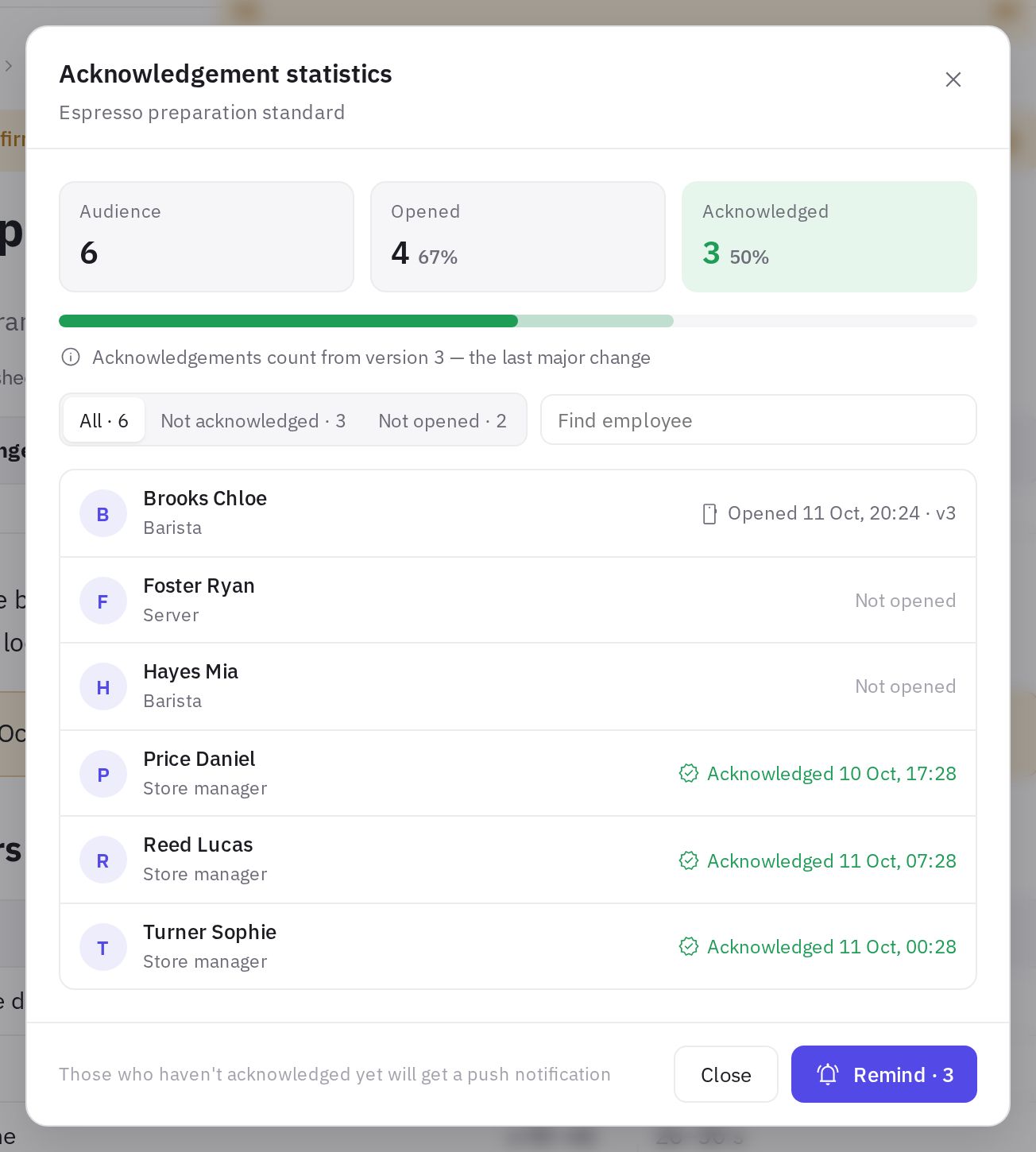
Acknowledgement statistics: summary and employee list -
Filter the list. Use the All, Not acknowledged and Not opened tabs and the employee search. For each person you see the date of acknowledgement or last opening, which version they opened and where — web or app.
-
Send a reminder. The Remind button sends a push only to those who haven't acknowledged yet.
Statistics are available to administrators and employees with the “Managing the instruction library” permission. Acknowledgements count from the latest major version — this is noted under the summary.
Employees who joined the company after publication are also in the audience and appear among those who haven't acknowledged. They didn't get the publication push — send it with the Remind button.
Frequently asked questions
An employee acknowledged, then the instruction was updated. Is the acknowledgement kept?
It depends on the change type. After a Minor edit, it's kept. After a Major change, the employee sees the instruction on the To acknowledge tab again.
Can I acknowledge on behalf of an employee?
No. The employee confirms it themselves under their own account — on the web or in the app.
Why does the statistics show an employee as “Opened” but not “Acknowledged”?
They opened the instruction but didn't click the button at the end. Remind them with the Remind button in the statistics.
There's no “I've read it” button. Why?
Either Require “I've read it” acknowledgement isn't turned on in the instruction settings, or you've opened a version that isn't current.
Thank you! This helps us improve the help center.