
The “Getting started” screen and a call with a manager
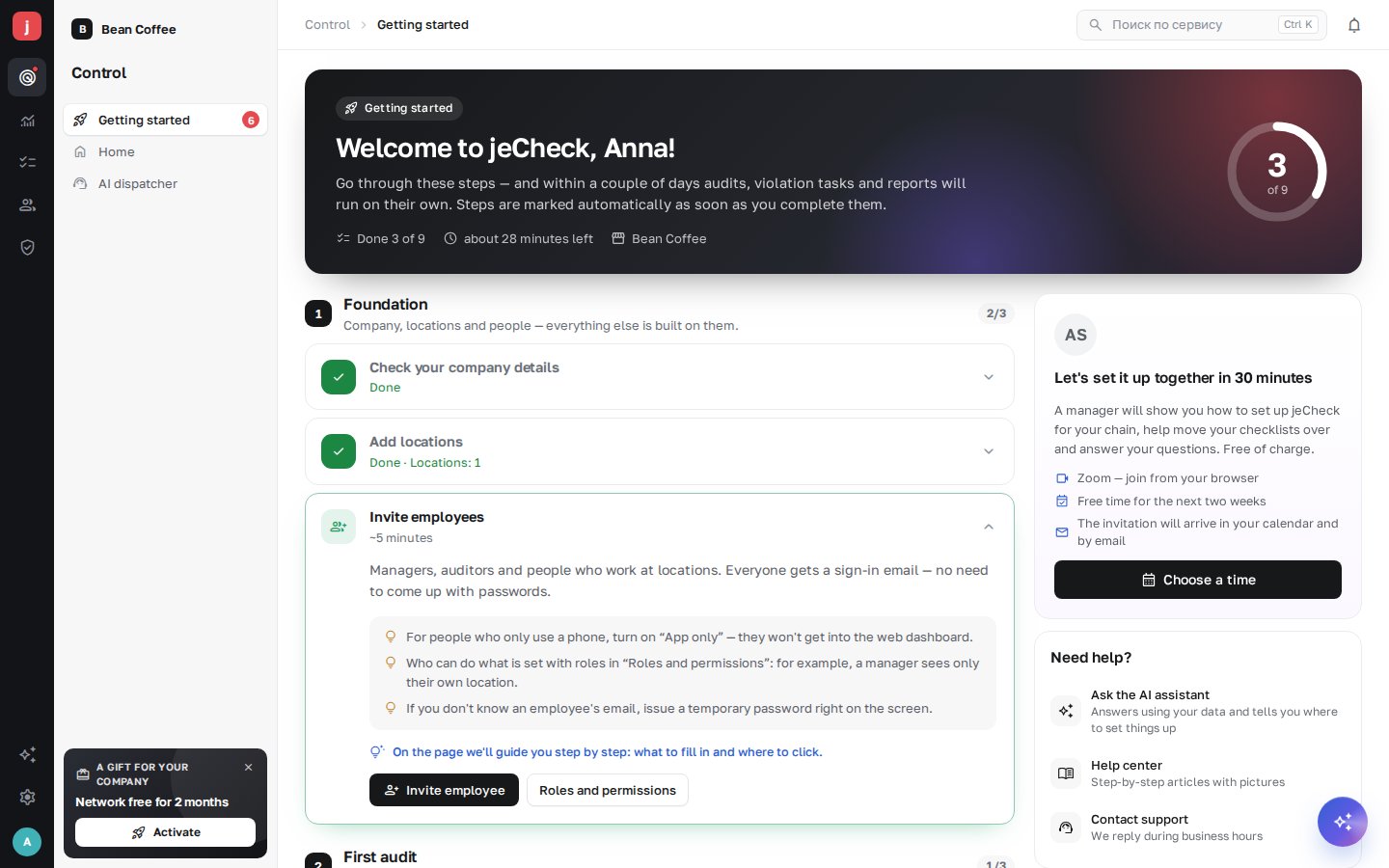
“Getting started” is a screen that guides a new company through setting up jeCheck: from company details to the first audit and violation tasks. Steps are marked automatically as soon as you complete them, and from the screen you can book a free call with a jeCheck manager.
Who sees the screen
- The company administrator — always.
- Employees with the “Getting started and call with a manager” permission (the “Home and AI Control” group in Settings → Roles and permissions) — for example, whoever is rolling out jeCheck in the chain. See Roles and permissions.
Until the screen is hidden, it opens on Home instead of the morning briefing. You can always open it from the menu Control → Getting started — the counter next to it shows how many steps are left.
Steps and when they are marked
The steps are split into three stages: Foundation, First audit and Order without reminders. jeCheck looks at your company's data and marks a step Done:
| Step | When it counts as done |
|---|---|
| Check your company details | the company has a country |
| Add locations | there is at least one location of your own |
| Invite employees | the company has more than one employee |
| Create an audit checklist | there is a checklist of your own |
| Install the app | someone has signed in to the mobile app, or there is already an audit |
| Run your first audit | there is at least one audit |
| Decide who fixes violations | there are tasks, or responsible people are set in checklist sections |
| Schedule regular audits | an audit plan exists (optional) |
| Call with a manager | you have booked a call (optional) |
The “Demo location” and the demo checklist created together with the company don't count — you need your own.
Open a step to see why it matters, tips and buttons that take you straight to the action: Add location, Invite employee, Build with AI (opens the AI assistant, which builds a checklist from a description), Create manually with hints, Assign responsible people, Schedule. The Install the app step shows App Store and Google Play QR codes and the email to sign in with.
Steps marked “optional” can be skipped with Skip and brought back with Restore step.
Hints on the page
Step buttons open the right page with step-by-step hints: a field or button is highlighted, and next to it you see what to enter or where to click. A hint moves on by itself once you've done the action, or with the Next button.
- Hints continue when you move to another page — for example, from the checklist list into the builder.
- You can skip a hint with Skip and close all hints with the Close hints cross.
- At the end you'll see a completion message and a Back to steps button that returns you to the “Getting started” screen.
How to hide the screen
Click Hide this screen and go to the briefing at the bottom right and confirm with Hide. Home will show the AI Control morning briefing again. When all steps are done, the screen shows a Go to briefing button.
You can return to the steps at any time — the Getting started item in the Control menu.
Call with a jeCheck manager
A manager will show you how to set up jeCheck for your chain, help move your checklists over and answer your questions. The call is free.
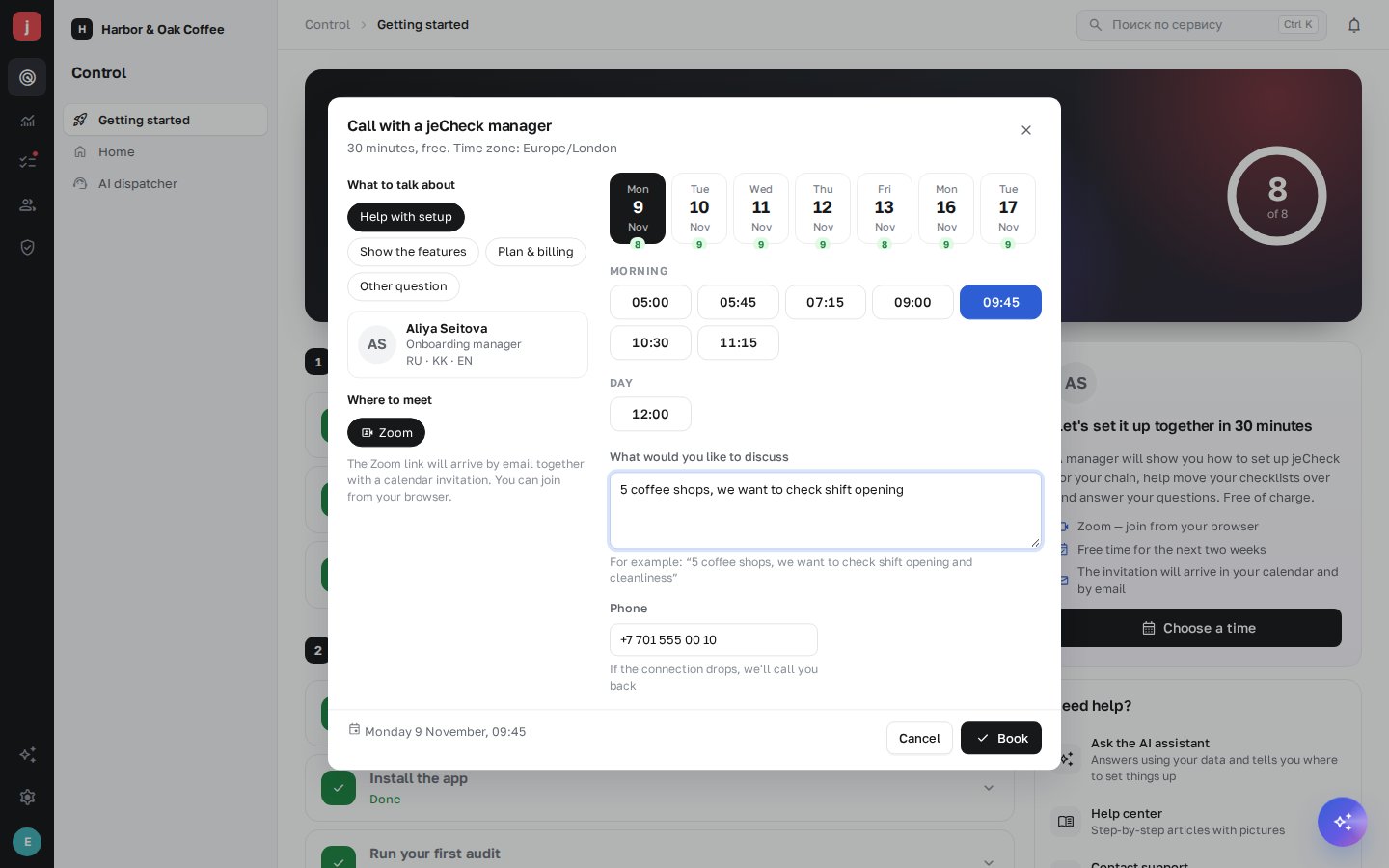
- Open booking. Click Choose a time in the card on the right or in the Call with a manager step.
- Choose a topic. Help with setup, Show the features, Plan & billing or Other question.
- Choose a day and time. Times are shown in your company's time zone; free slots cover the next two weeks. If there are several managers, pick one or Any available.
- The call takes place in Zoom. The link to the manager's room comes in the email — you can join right from your browser, no app required.
- Tell us about your task. In What would you like to discuss, briefly describe your chain and, if you like, leave a phone number in case the connection drops.
- Click “Book”. The invitation arrives by email together with a calendar file.
You'll get an email reminder an hour before the call. On the “Getting started” screen the call card shows the date, time and manager, plus Join, Add to calendar, Reschedule and Cancel buttons. A company can have one active booking: a new booking reschedules the existing one. When you reschedule or cancel, the calendar event is updated and the manager gets an email.
If the manager cancels the call, you'll get an email with a link to choose another time.
Frequently asked questions
Why isn't a step marked as done?
Marks are based on your company's data: the demo location and demo checklist don't count. Create your own location or checklist — the mark will appear within a minute.
There is no free time for a call
If there are no free slots in the coming days, write to support — we'll find a time manually.
Thank you! This helps us improve the help center.