
How to take a test via a link
When a test is assigned to you, you get a “New test” notification with a personal link. The link opens the test in your browser right away — you don't need to sign in. Answers are saved at every step, so nothing is lost if your connection drops.
Where to find your test
- Notification — open it, and the test opens via your personal link.
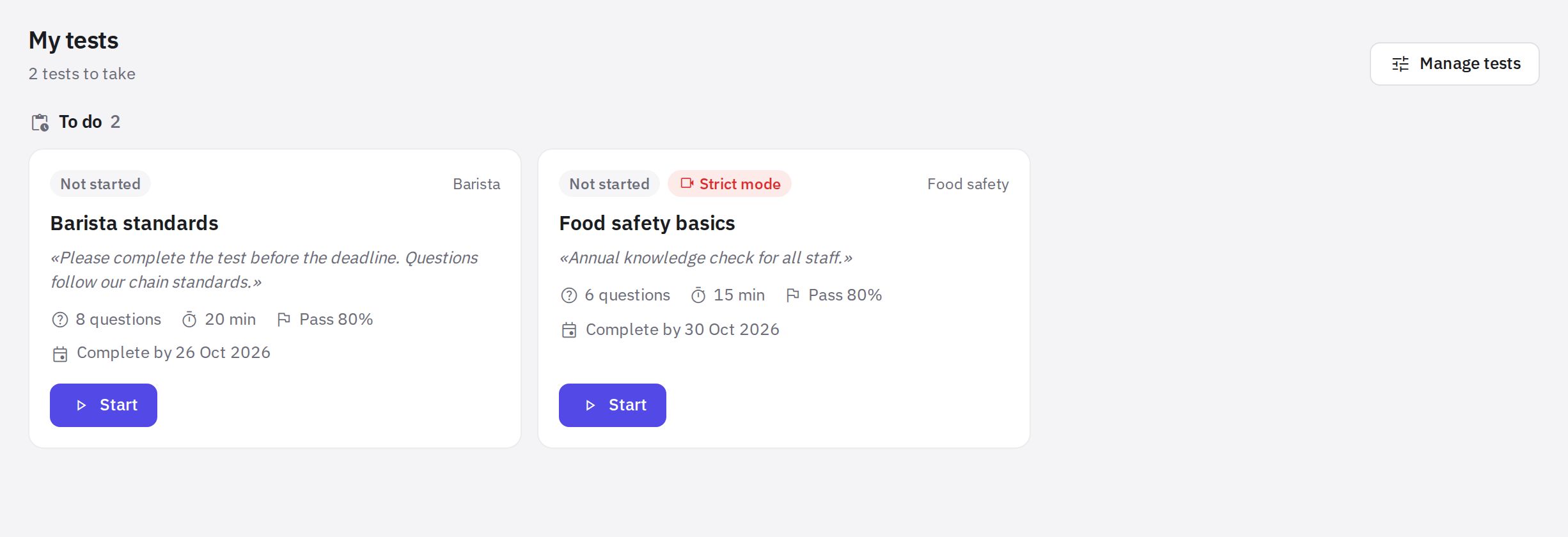
- Web dashboard — Work → Testing opens the My tests page. Tests are grouped into To do, In review and Passed; each one shows the due date, passing score and your best result.
- Mobile app — if your manager allowed taking the test in the app. Strict-mode tests can't be taken in the app: open the link in a browser.
Your personal link leads to your test and your results. Don't forward it to colleagues.
Step by step
-
Open the test. The first screen shows the name, description, your manager's message and the rules: time limit, passing score, whether you can go back to questions, due date.
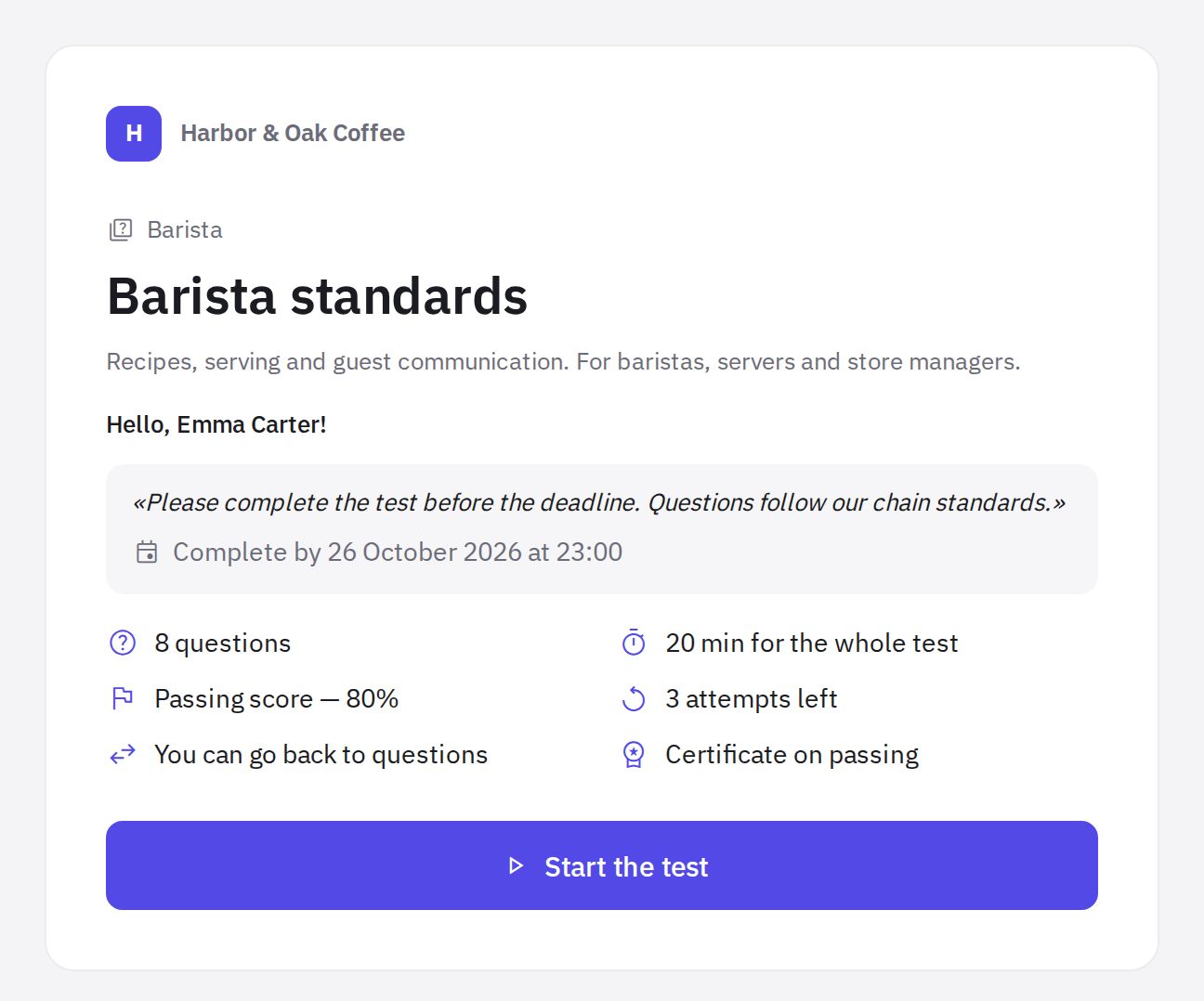
The first screen of the test before you start -
Click “Start the test”. If there's a time limit, the countdown starts now. In strict mode, you first need to pass a camera check — see Strict mode with a camera.
-
Answer the questions. The Back and Next buttons move between questions. If you're unsure, click Return later — the question gets flagged, and you can come back to it from the question list.
-
Finish the test. Click Finish on the last question (or Finish test in the question list) and confirm. After that, you can't change your answers.
-
See your result. Your manager decides what you see: nothing, just the score, the score and mistakes, or a full review with the correct answers.
If the test uses Forward only mode, you can't go back to a previous question: there are no Back and Return later buttons, and an unanswered question shows Skip instead of Next.
If you were interrupted
If you closed the tab or lost your connection, open the link again and click Continue the test: your answers are saved. Keep in mind that the timer keeps running. You can keep answering offline: answers are sent once the connection is back.
When time runs out, the test ends automatically and the answers given before that count.
How to read your result
- Test passed — you reached the passing score and made no mistakes in critical questions.
- Test failed — not enough points, or a mistake in a critical question (such a test doesn't count regardless of the score).
- Answers under review — the test has open answers that a reviewer will grade. You'll get the final result after the review.
If your manager allowed showing results, the result page has a Download PDF button and, if a certificate is issued, its number. The result's validity period is shown on the My tests page.
Frequently asked questions
I failed the test. Can I retake it?
Yes, if you have attempts left: on the My tests page, click Retake. If there's a pause between attempts, the screen shows when the next one opens. When you're out of attempts, contact your manager — they can give you a new attempt.
The due date has passed. Can I still take the test?
Usually yes: after the due date the test stays available unless your manager closed the assignment. The screen will note that the deadline has passed.
If the assignment has Close the test after the deadline turned on, you can't start the test after the deadline — you'll see a message that the test is closed. Ask your manager to extend the deadline. An attempt started before the deadline can be finished.
The test says it opens on a certain date. What does that mean?
Your manager assigned the test with a start date. You can't start it before then; you'll get a notification when the test opens.
Can I start on a computer and finish on my phone?
Yes, an attempt in progress can be continued from any device using the same link. The exception is strict mode.
Thank you! This helps us improve the help center.